
Google links
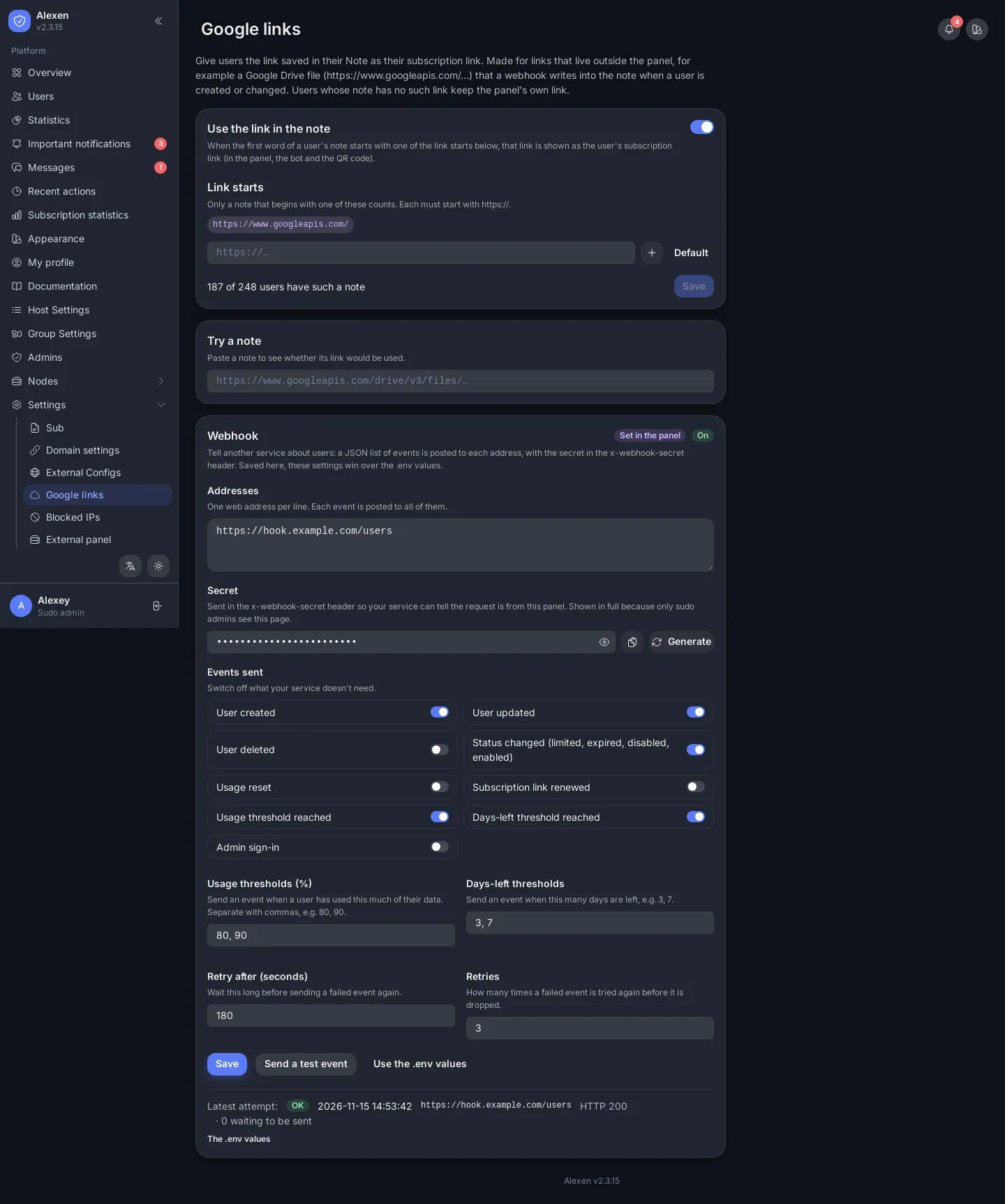
Open Settings → Google links. This gives a user the link saved in their Note as their subscription link, instead of the panel's own link. It is made for links that live outside the panel, for example a Google Drive file that is reachable where your own domain is blocked.
How it works
- Something outside the panel makes the file (a Google Drive file, for instance) and writes its link into the user's Note. This is usually a webhook: the panel tells your service when a user is created or changed, and the service writes the link back through the API.
- With Use the link in the note on, a user whose note starts with one of the Link starts gets that link as their subscription link: in the panel, in the Telegram bot and in the QR code.
- Users whose note has no such link keep the panel's own link.
Only the first word of the note counts, and it has to start with one of the listed link starts (each must begin with https://). The default is https://www.googleapis.com/.
Settings
| Setting | Meaning |
|---|---|
| Use the link in the note | Off by default. Turn it on to start using note links. |
| Link starts | Which links count. Add your own, for example another storage address. |
| Users with such a note | How many users would get a note link right now. |
| Try a note | Paste a note to see whether its link would be used. |
Webhook
The Webhook card shows whether the panel sends events to another service. It is set on the server, not here:
alexen env set WEBHOOK_ADDRESS "https://hook.example.com/users"
alexen env set WEBHOOK_SECRET "a-long-secret"
alexen restart
The panel sends the secret in the x-webhook-secret header, so your service can check that a request is really from the panel. Events are sent when a user is created or updated.
Keep the link working
The link in the note is used exactly as written. If the file behind it is deleted or its key is revoked, the user's app stops updating, so keep the file and the key alive.
Related API: Note links.